

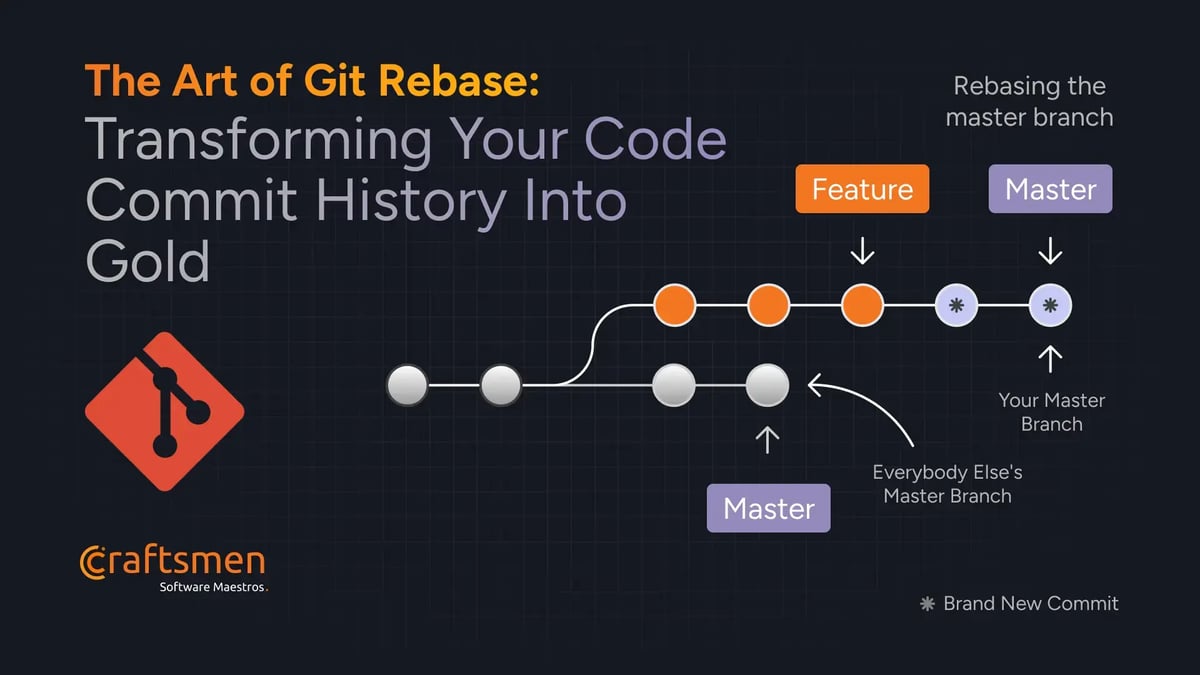
In terms of version control, Git is the cornerstone of modern software development. It has become the most popular choice for developers globally because to its strength and versatility and there’s a hidden gem that can elevate your version control game to new heights: the interactive rebase. This tool effectively cleans up commits before merging them into a main branch, ensuring a logical and easy-to-understand commit history for team members.
Software engineers often encounter situations where their commit history may not accurately reflect their elegant solution, possibly due to more detailed commit messages or multiple small commits during troubleshooting. This is where `git rebase -i`, or interactive rebase, comes into play.
Interactive rebase allows for modification of commit history in branches, reordering, combining, or rewriting history like a time machine for code.
In this blog we will delve into the art of interactive rebase, focusing on its features, usage, and real-world examples to showcase its capabilities.
Understanding Git Rebase:
Before we get into the world of interactive rebase, we need to understand the concept of rebasing in Git. At its core, rebasing is the process of relocating or combining a series of commits into a new base commit. A regular rebase is used to integrate changes from one branch into another, generally in order to keep a linear project history. This action allows you to change the starting point of your branch, thereby rewriting your project’s history.
In its simplest form, A rebase is essentially “replaying” your changes on top of another branch. Let’s consider a common scenario:

In this diagram, we have a feature branch that was created from the master branch at commit E. The feature branch has progressed with commits A, B, and C, while the master branch has moved forward with commits F and G.
If we perform a rebase of feature onto master, the result would look like this:

The commits A, B, and C are “replayed” on top of the latest master commit (G), creating new commits A’, B’, and C’. These new commits have the same changes as the original ones, but they have new commit hashes because their parent commit has changed.
The Golden Rule of Rebasing:
Rebasing is a really powerful tool in Git but there is an essential rule: never rebase commits that have been pushed to a public repository. This is because the act of rebasing actually rewrites the history since it changes commit hashes, creating completely new commit objects. For other developers who have built their work on top of original commits, this can cause significant issues.
Therefore, only use rebasing (and other history-rewriting tools like interactive rebase) on your local, unpublished work. It’s great for cleaning up your own feature branches before merging them into a team branch but should be avoided for commits already shared on a remote repository.
Understanding Interactive Rebase: A Powerful Tool
Now that we understand the basics of rebasing, let’s explore the true power of interactive rebase. Interactive rebase is initiated with the command git rebase -i. This command opens up an editor with a list of commits, allowing you to modify each commit individually.
The power of interactive rebase lies in its flexibility. With it, you can:
- Editing Commit Messages (reword): Modify the messages of previous commits history.
- Squashing Commits (squash): Combine multiple commits into one.
- Removing Commits (drop): Delete specific commits from the git history.
- Reordering Commits: Change the order of your commits.
- Split/Reopen old commits for editing (edit): Stop at this commit for amending.
- Fixup Commit: Fixing mistakes of your earlier commits, Like squash, but discard the commit message.
This level of control over your commit history is what makes interactive rebase such a valuable tool for maintaining a clean and meaningful Git history.
Basic Mechanism of an Interactive Rebase Process:
Even though interactive rebase has various uses, the basic process is always the same. Once one fully grasps this fundamental mechanism, interactive rebase will no longer a “complex mystery” and becomes a useful tool that can be easily accessed.
Step 1: Determine the Starting Point
- Identify which part of your commit history you want to modify.
- Choose the parent commit of the earliest commit you wish to modify as your starting point.
Step 2: Initiate the Rebase Session
- To initiate a rebase session, use the command `git rebase -i`, specifying the commit you wish to rebase on.
- Here, We’re using git rebase command with the `-i` flag to make it “interactive” and the commit to be used as a base. I choose to provide HEAD~3 for this instance which indicates the commit that is ‘three commits behind the HEAD’. The alternative option is to utilize a specific SHA-1 hash.
Step 3: Specify Actions
- After that, Git will open an editor listing commits from oldest to newest.
- Each line shows a command (default is “pick”), commit hash, and the commit message. This is where the magic happens – you can now tell Git what to do with each commit.
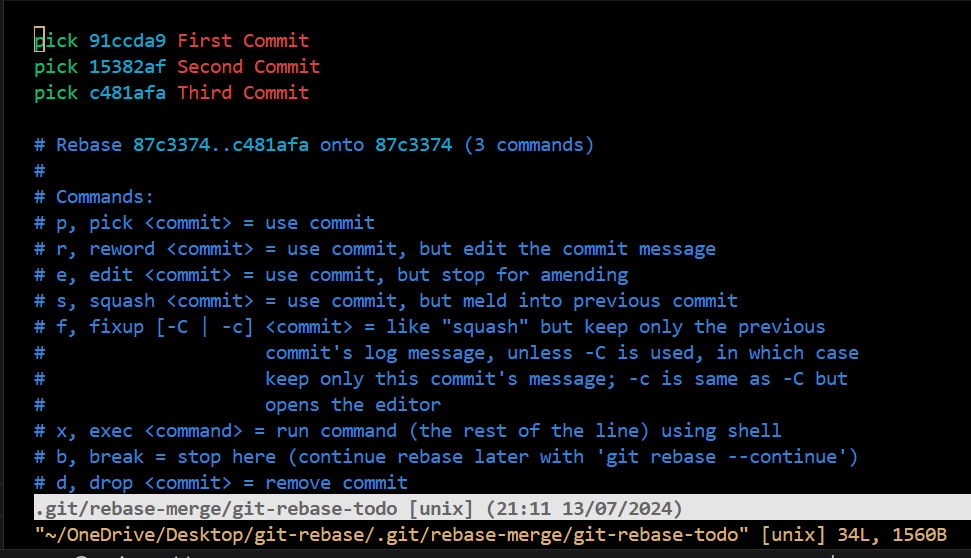
Step 4: Modify the List
- Here, Now change the command at the start of each line to indicate your desired action for each commit (Like: edit, reword, drop, squash etc).
- So, In Command Line Window (I’m using Vim):
- Press ‘i‘ to enter insert mode
- Edit the commands as needed
- Once you’re done typing, press ‘esc‘ to exit insert mode
- Then, type ‘:wq‘ to save and quit the window.
Step 5: Resolve Conflicts
- If conflicts arise during the rebase, Git will pause and allow you to resolve them before continuing.
Step 6: Complete the Rebase
- Once all steps are finished, your branch will have an updated commit history.
This process allows you to rewrite history, combining, editing, or reordering commits as needed.
With this theoretical overview out of the way, let’s explore some real-world common scenarios where interactive rebase really comes in handy.
Scenario 1: Editing an Old Commit Messages
Sometimes, you see a typo in a previous commit message or realize that you’ve forgotten to include anything important in the description. We could have used the git commit command’s –amend option if we were discussing the most recent commit. However, For any commit older than that, we have to use interactive rebase!
Here’s an example of an incorrect commit message containing a typo that we’d like to fix:

Here, there a bad commit message(Seond Commit) that needs correction.
To fix a this, we must identify the base commit for the interactive rebase session. So our session will begin at HEAD~3, which is three commits behind the HEAD commit (named “First Commit” and commit hash ’91ccda9′). This is because we must (at least) roll back to the parent of our problematic commit.
The initial commit hash can now be used to execute the interactive Git rebase command:
OR you can use
After executing the command, an editor window displays the chosen commits, which are in reverse order because, during an interactive rebase session, Git will reapply the previous commits, item by item.
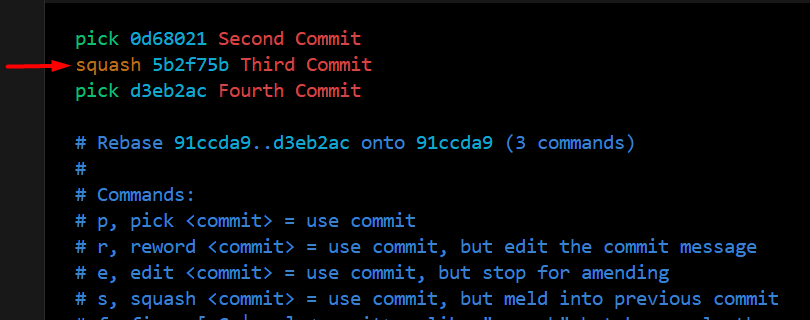
Another crucial point is you can’t really change anything in this editing window. you can’t proceed to modify the commit message in this specific instance. Instead, you just use an action keyword to indicate the commit you wish to update. In our case, we want to change a commit’s message, So replace the “pick” keyword with “reword” (or “r”).
Now save and close this editor window, a new editor window will appear with the previous commit’s message. Now It’s time to make your modifications at last:
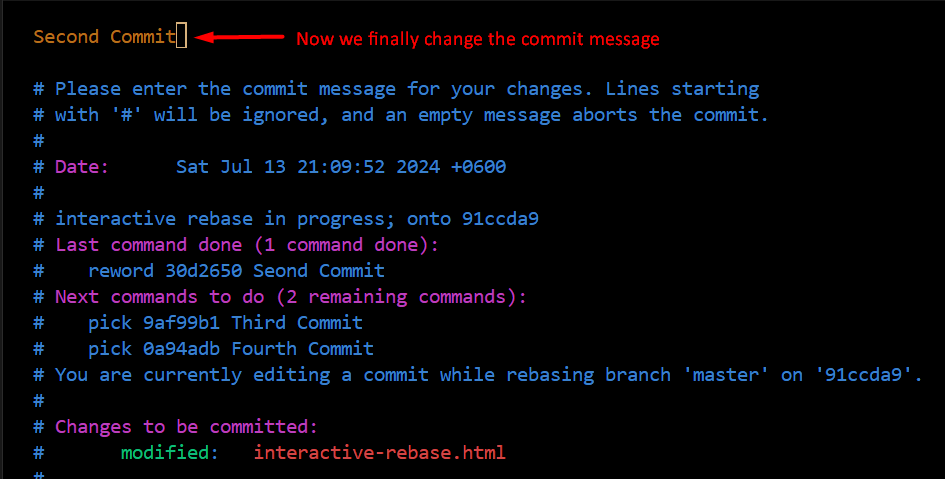
After saving and closing once more, the interactive rebase session is complete and our old commit message has been updated!
Scenario 2: Combining Multiple Commits into One
Another handy feature for interactive rebase is when you wish to combine multiple separate commits into a single one.
Let’s go over a real-world example involves combining selected commits into a single commit:

Similar to our first example, Start the interactive rebase session at least at the parent commit of the commit we wish to manipulate.
An editor window will appear, displaying the portion of our commit history that we wish to modify, Here, we’re going to use the action keyword “squash” (or “s”). To utilize squash, you need to be aware of one crucial thing: The line highlighted with the “squash” will be combined with the line immediately above. That’s why, I’ve marked line #2 with “squash” to merge it with line #1, as illustrated in the screenshot provided.
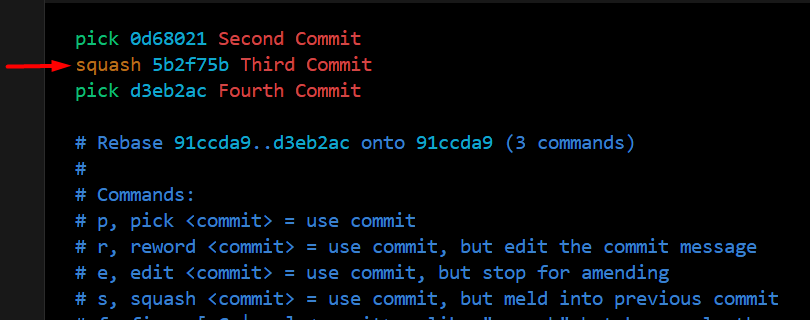
Now, Save and close the editor window while waiting for a new window again; it is the time to enter a commit message. Because, when joining multiple commits, we generate an additional new one, and each commit requires a commit message like every other.
What you see in the screenshot below is what Git has prepared for us: it has combined certain comments with the commit messages from the matching original commits. You have the option to either delete the earlier messages and begin again, or to keep the earlier ones and add extra information.
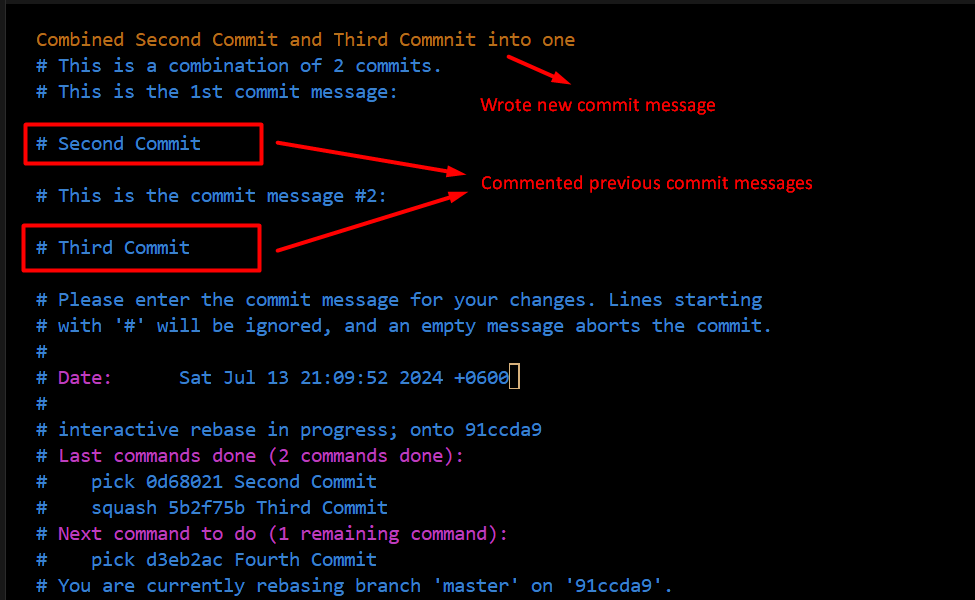
Now save and close this editor window, Resolve any conflicts if they arise during the rebase process. When it’s finished, You’ll notice that the changesets of the two previous commits were combined to form a single commit.

Figure: Two separate commits is now a single one!
Scenario 3: Deleting Unwanted Commits
If you decide to delete an old commit from your history, you can do so using interactive rebase. Git offers various options for undoing changes, including ‘reset’, ‘revert’ but Interactive rebase is the only method to completely remove a commit from the middle of your history.
Consider the scenario where you unintentionally added a password or personal credential to a commit; such sensitive data shouldn’t be disclosed.
The issue cannot be resolved by deleting everything and committing again, as the password remains in the previous commit’s repository, Ideally, the data should be removed entirely.

Suppose we want remove the commit stating “Added master password”, So we must use its parent commit as the inactive rebase base commit. That is `2b50bc3` in our instance. In order to manipulate anything that comes after, we must feed this commit into interactive rebase.
Notice that, I used a concrete SHA-1 hash in the `git rebase -i` command this time. Alternatively, could have used `HEAD~3` instead of the commit hash.
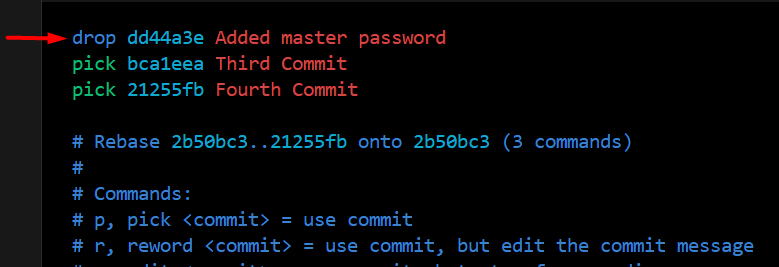
Git provide us a overview of every commit made after the base commit. We can now say what we want to do with these commits. This time, To delete the unwanted commit we’re using the `drop` (or “d”) action keyword. Alternatively, we could just remove the entire line from the editor. Git will remove the corresponding commit when we save this file, so all you have to do is remove that line from the listing. Whatever method you decide on.
Next, save and exit the editor window. Resolve any conflicts if they arise during the rebase process. When it’s finished, Now We have effectively removed that unwanted “Added master password” commit from our git records.

Figure: “dd44a3e Added master password” commit is completely deleted from our git commit history.
Scenario 4: Change the Order of Your Commits.
Reordering commits is another useful feature in interactive rebase that lets you rearrange the commit history of your branch.
Imagine working on a patch series, you find that one commit needs to be made earlier in the series. In that scenario we can use `git rebase -i` to accomplish this. Let’s look at our existing situation in below picture. Total five commits are available, but not in the correct order.

Here, I would like to move commit `57b32af (Third commit)` to the latest position in the commit list. To reorder, locate the commit before the earliest one in the list, which is the `b6cbd3f (First commit)`.
The default editor displays a commit list with “pick” as the first line, followed by the commit hash and message. To change the order of lines, simply cut and paste them into the new order using “dd” and “p” in a vim editor.

Figure: Reordered commit history after rebase
Now, save and exit the editor, git will execute the commands and update the working directory and repository. Resolve any conflicts if they arise during the rebase process. When it’s finished, the commits in your branch will be in the new order that you specified.
Scenario 5: Editing an Old Commit Messages
By using Git’s interactive rebase ‘edit’ feature you can effectively reopen a previous commit, make necessary edits, or manipulate it according to your project’s needs.
In this scenario, We are going to alter an older commit. More specifically, we’ll divide a given commit into two different commits.
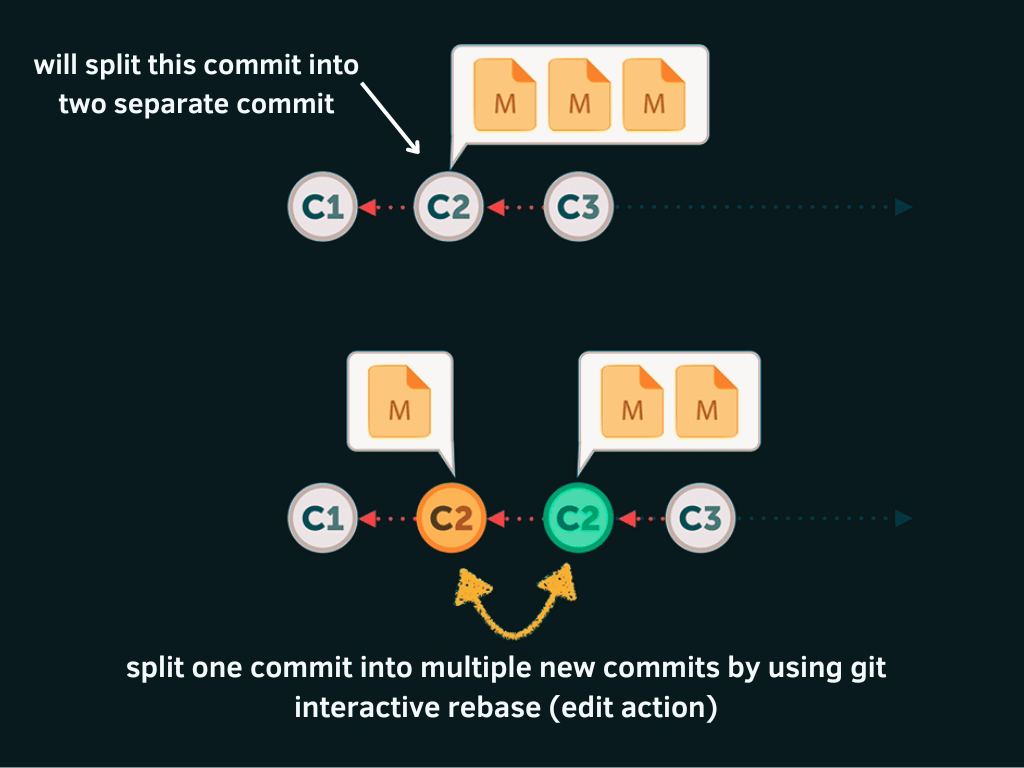
So let’s look at our below image of git history and imagine we want to edit this ‘Added about.html and contact.html file’ commit.

To perform interactive rebases, we must choose the parent commit(05aff84) as the base commit and feed it into the interactive rebase.
Git has now stopped at this revision, but to see its changes we can use `git reset Head~1`:
At this point, we can start working on the actual modifications and process them in any way we choose, either by making adjustments or removing existing ones.
But for this example, let’s just split the original commit into two separate commits. So we simply stage one of the files and commit it. And then stage the other one and also commit it in a separate commit. Lastly, we need to use the `git rebase –continue` command to finish and complete the rebase. That’s it.
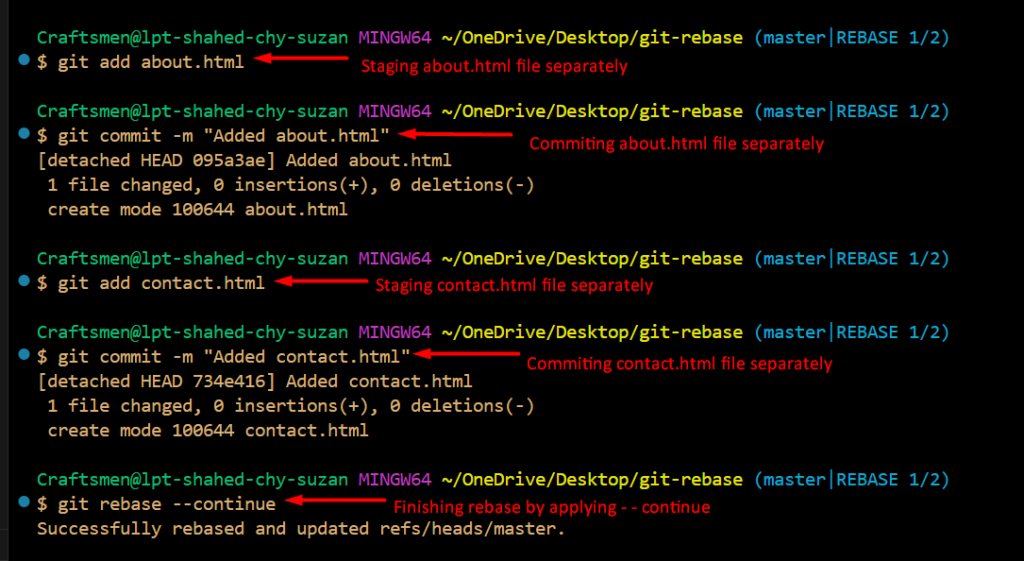
Now, the final result image shows that the original ‘Added about.html and contact.html file’ commit was replaced with two new, independent commits, just the way we wanted it.
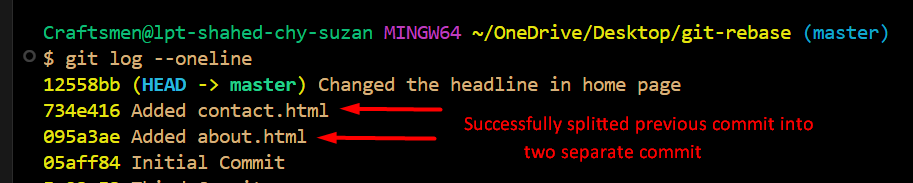
Figure: Successfully splitted the original commit into two separate commits
Scenario 6: Fixing Mistake of Your Earlier Commits
Another reason for why interactive rebase is useful is when you discover a mistake in one of your previous commits. It doesn’t matter what specifically went wrong; perhaps you just made a mistake or forget to add a necessary code or file.
In such situations, a common solution is to create a new commit to fix errors, but this can confuse the commit history due to numerous “quick fix” commits.
The “fixup” feature of interactive rebase is useful in this particular scenario. After applying the modifications from this “quick fix” commit to the original commit, “fixup” fixes the issue and discards the band-aid commit.
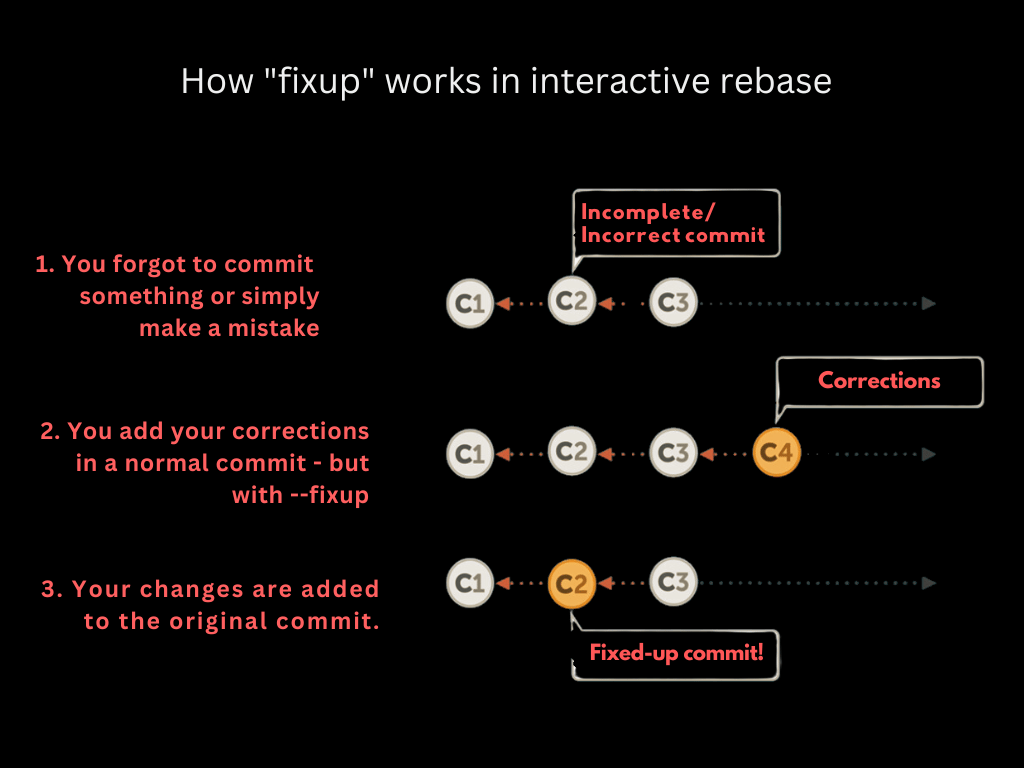
How “fixup” operates:
After applying `fixup`, Our original commit looks like it has never been a problem at all. In that case, let me illustrate with a practical example.
To fix the issue, Firstly make necessary changes such as adding new files, modifying existing ones, or removing old files to correct the mistake. Then second step is to commit these modifications to the repository, but there’s a little catch: during this commit, we’ll use the `–fixup` flag to tell Git the hash of our bad commit, In our case that is `12558bb`.
Now, if you look at the commit history it displays a new commit, prefixed with “fixup!” and the commit message of our bad commit.
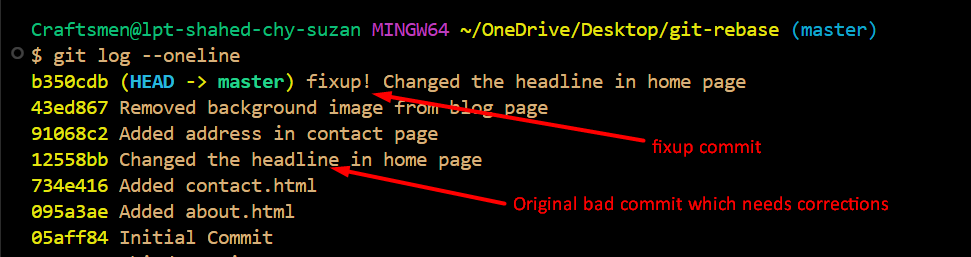
The third step now is to start the interactive rebase session by the parent of the bad commit and the `–autosquash` flag is used for the second ingredient, ensuring that the active editor window doesn’t require any action from our part.
Now, take a look at the situation closely:
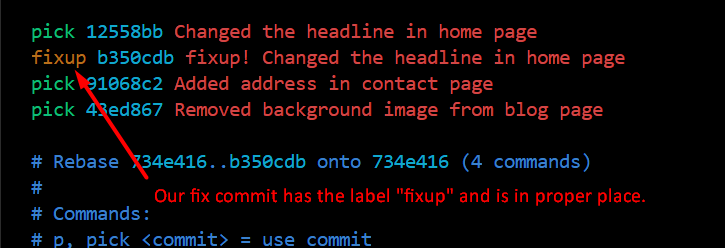
You’ll notice that Git performed two tasks for us automatically:
- Our band-aid commit was identified as a “fixup”
- The lines were rearranged so that our band-aid commit is exactly below our messy commit. `fixup` acts similarly to `squash` that combines with the line above.
Now, The final step is to save and exit the editing window.
Let’s take a look at the commit history once more:
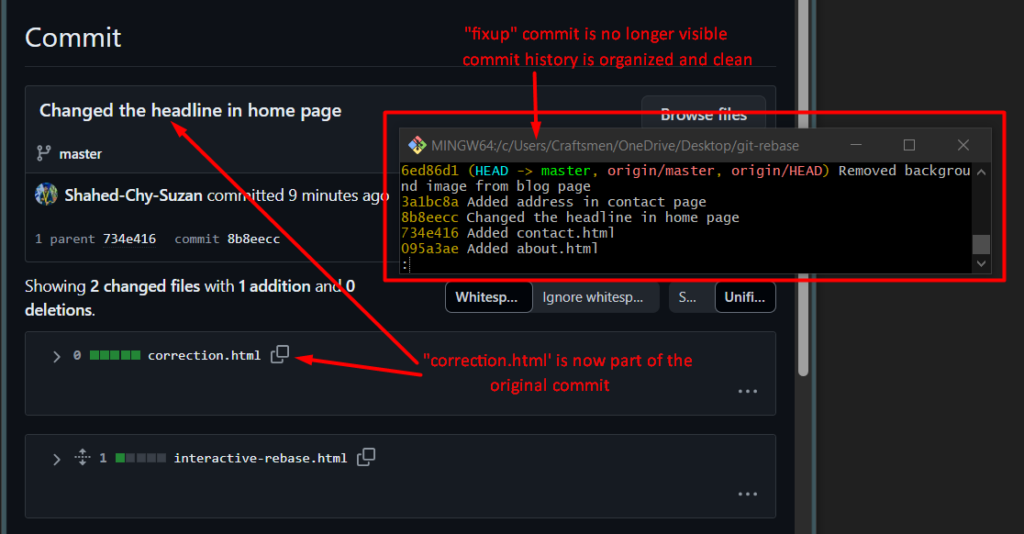
A happy ending!
The adjustments from our band-aid commit have been included into the initial faulty commit, and the ugly band-aid commit is no longer visible in the commit history, ensuring a clean and organized environment.
Conclusion:
Interactive rebase is a powerful mechanism that can help you keep a neat, readable and logical Git history. It will enable you to turn your messy line-up of commits into clean and organized versions of your development process that makes it easier for you to understand and collaborate with others, which will facilitate understanding and collaboration between you and your teammates. This also helps in debugging and gives a clear documentation of your project.
But be careful when using an interactive rebase especially on the shared branches. Always, make it a habit to create backup branches and communicate your intentions clearly with your team-mates before major rebases.
Happy rebasing!




.png?width=110&height=79&name=glassdoor%20(1).png)